
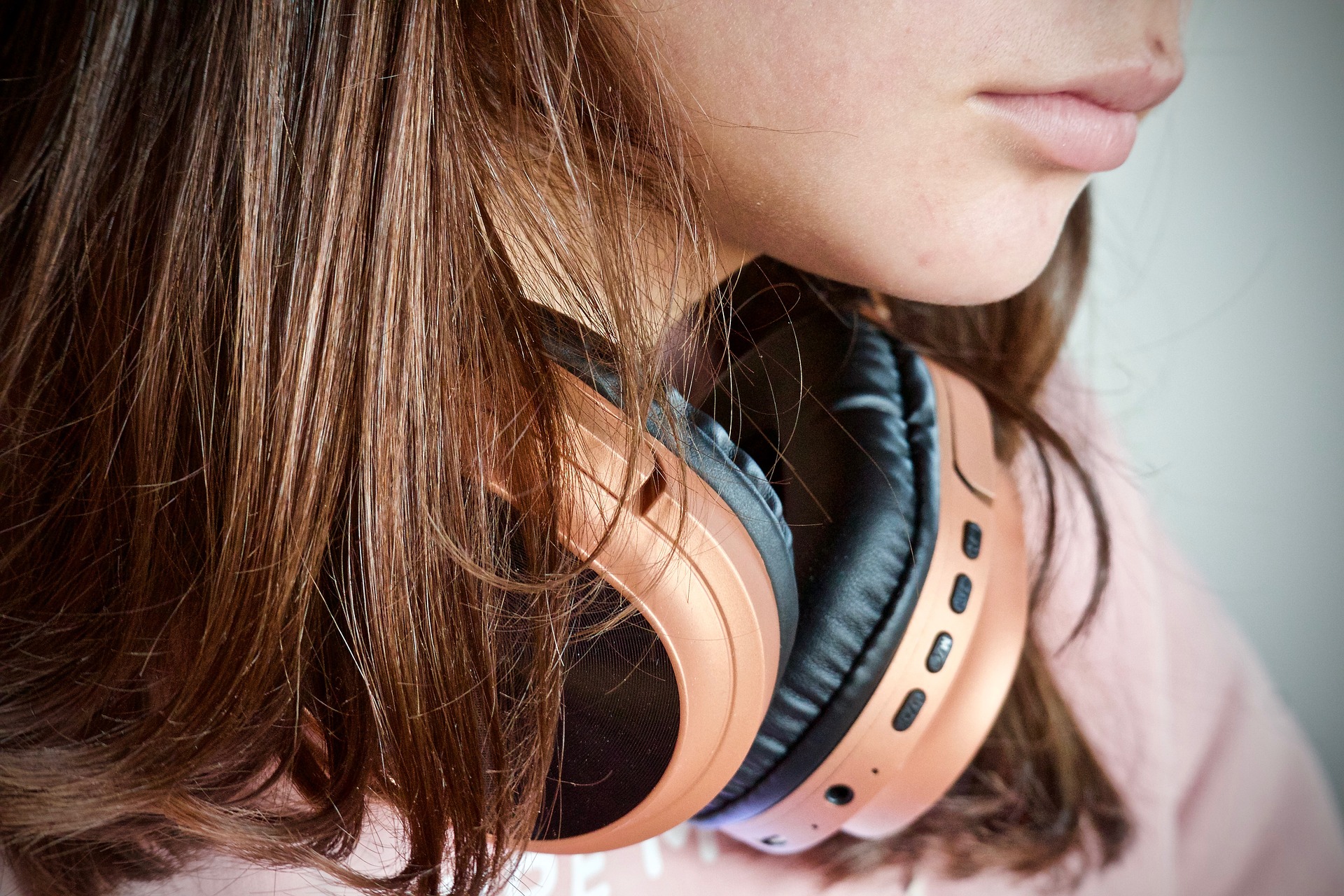
The Urbanista Stockholm earphones are wireless earbuds that allow you freedom and a great listening experience in one. Offering 14 hours of uninterrupted playtime and simple controls, this product is perfect for everyone in need of a new pair of earphones.
You can answer calls and listen to music with these technically sound earphones giving you crisp audio whether you’re on the phone to your BFF or listening to your most motivating gym song.
When your Urbanista Stockholm true wireless earphones won’t connect it can be very frustrating. Whether you’re on your way out to walk the dog or in the middle of a workout, your headphones disconnecting is the last thing anyone needs.

How to connect your Urbanista Stockholm wireless earphones
Make sure your headphones are charged and turned on and that your device’s Bluetooth is also turned on.
Enter your devices Bluetooth settings and find the Urbanista Stockholm earphones.
Press “Connect” and wait for the earphones to flash, indicating that they have connected to your device.
You are free to listen wirelessly and enjoy the superb audio this product has to offer.
Why won’t my earphones connect to anything?
The most common reason for Bluetooth connections failing is WiFi interference from other devices in the general area.
Another reason could just be a glitch or error between the devices that can be solved simply with a restart or just trying to connect again.
You might also have trouble connecting if your phone or the earphones are low on battery as Bluetooth can take a lot of power to use.
Solve your poor Wi-Fi connection in your home
[amalinkspro type=”showcase” asin=”” apilink=”https://amzn.to/3hnGmLm” new-window=”true” addtocart=”false” nofollow=”true” sc-id=”4″ imgs=”%3Ca%20href%3D%22https%3A%2F%2Fwww.amazon.co.uk%2FTL-WA850RE-Universal-Extender-Broadband-Ethernet%2Fdp%2FB00AHXXJVW%2Fref%3Das_li_ss_il%3Fie%3DUTF8%26linkCode%3Dli3%26tag%3Ddigihelpdesk-21%26linkId%3Dc8d40f5560f605c42b3ef6f03d3e3c06%26language%3Den_GB%22%20target%3D%22_blank%22%3E%3Cimg%20border%3D%220%22%20src%3D%22%2F%2Fws-eu.amazon-adsystem.com%2Fwidgets%2Fq%3F_encoding%3DUTF8%26ASIN%3DB00AHXXJVW%26Format%3D_SL250_%26ID%3DAsinImage%26MarketPlace%3DGB%26ServiceVersion%3D20070822%26WS%3D1%26tag%3Ddigihelpdesk-21%26language%3Den_GB%22%20%3E%3C%2Fa%3E%3Cimg%20src%3D%22https%3A%2F%2Fir-uk.amazon-adsystem.com%2Fe%2Fir%3Ft%3Ddigihelpdesk-21%26language%3Den_GB%26l%3Dli3%26o%3D2%26a%3DB00AHXXJVW%22%20width%3D%221%22%20height%3D%221%22%20border%3D%220%22%20alt%3D%22%22%20style%3D%22border%3Anone%20!important%3B%20margin%3A0px%20!important%3B%22%20%2F%3E” link-imgs=”false” specs=”Reaches those hard to reach places to provide better Wi-Fi coverage ~~~Plug and Play~~~Quick Installation Guide~~~Allow more people and devices to connect to the same router~~~” btn-color=”#ff9900″ btn-text=”View on Amazon” alignment=”aligncenter” hide-prime=”0″ hide-image=”0″ hide-reviews=”0″ hide-price=”0″ hide-button=”0″ width=”1200″]TP-Link TL-WA850RE N300 Wi-Fi Range Booster[/amalinkspro]
Five best wireless headphones for running: Beats, Anker, Jaybird and more!
How to solve this problem in four easy to follow steps
- Make sure the charging case is charged and that the indicator lights are on.
- Forget the device by opening your Bluetooth settings. Tap the blue “i” next to the Bluetooth device you want to forget. Tap “Forget this Device.” When prompted again, tap “Forget Device.”
- While the earphones sit in the case, hold the right and left logo simultaneously for 10-15 seconds and don’t stop until you see both of them blinking 3 times.
- Open Bluetooth settings on your device and connect to “Urbanista Stockholm”.
- Upon successful pairing, The indicator light on the left earphone will stop flashing and the right earphone will flash slowly.
Boost the Wi-Fi connection for you and your family
[amalinkspro_table id=”17109″ aff-id=”digihelpdesk-21″ new-window=”on” nofollow=”on” addtocart=”off” /]
If you’re still having problems connecting then give us a call on 0800 433 7963 or ask us a question via our Facebook page where we will be happy to assist you!
ARE YOU HAVING ISSUES WITH YOUR DIGITAL DEVICE? CALL DIGI HELPDESK TODAY ON 0800 433 7963.